How to secure your X account: the settings that matter
The short answer
To secure your X account, use a password you reuse nowhere, turn on two factor authentication with an authentication app or a security key, switch on Password reset protect, remove apps and sessions you do not recognise, and never type your password into anything except x.com.
Key takeaways
- X offers three two factor methods: authentication app, security key and, only for X Premium subscribers, text message.
- Switch on Password reset protect so a reset needs your email address or phone number, not just your username.
- Open Apps and sessions, then revoke connected apps and log out sessions you do not recognise.
- X says it never asks for your password by email, Direct Message or reply, and only sends email from x.com.
- Give teammates a Delegate role instead of your password. Only the owner manages password and login verification.
To secure your X account, lock five things in order: the password, the second sign in step, the password reset form, the apps and sessions already signed in, and your own habits around links and messages. X has a setting for each one. This guide shows where they are and which choice to make. Then go through the apps you have authorised: how to review and remove connected apps.
It is written for people who run an account that matters: a brand, a founder profile or a client account. If other people post for you, the section on Delegate saves you from the most common mistake. Keep a copy of your data too: how to download your X archive.
Where an X account can be attacked
An X account has five doors, and a strong lock on one does not help while another stands open. Lock them in this order.
Lock 1
The password
A short or reused password is the easiest way in. X's own tips ask for a strong password you use nowhere else.
Lock 2
The second step
Two factor authentication means a stolen password is not enough on its own.
Lock 3
The reset form
Anyone can type your public username into account recovery. Password reset protect makes that request harder.
Lock 4
Apps and sessions
Every connected app and every logged in device has already been let in. Prune the list.
Lock 5
You
Phishing asks you to open the door yourself. X says it never asks for your password by email, Direct Message or reply.
The order matters. A strong password with no second step still falls to one convincing fake page, and a second step does not help if an old app still has the right to post for you. Locked out by a forgotten password? See how to recover a forgotten X password.
Everything below sits in one place. Open Settings and privacy, then Security and account access. Privacy settings sit next door; see the privacy settings every brand should check.
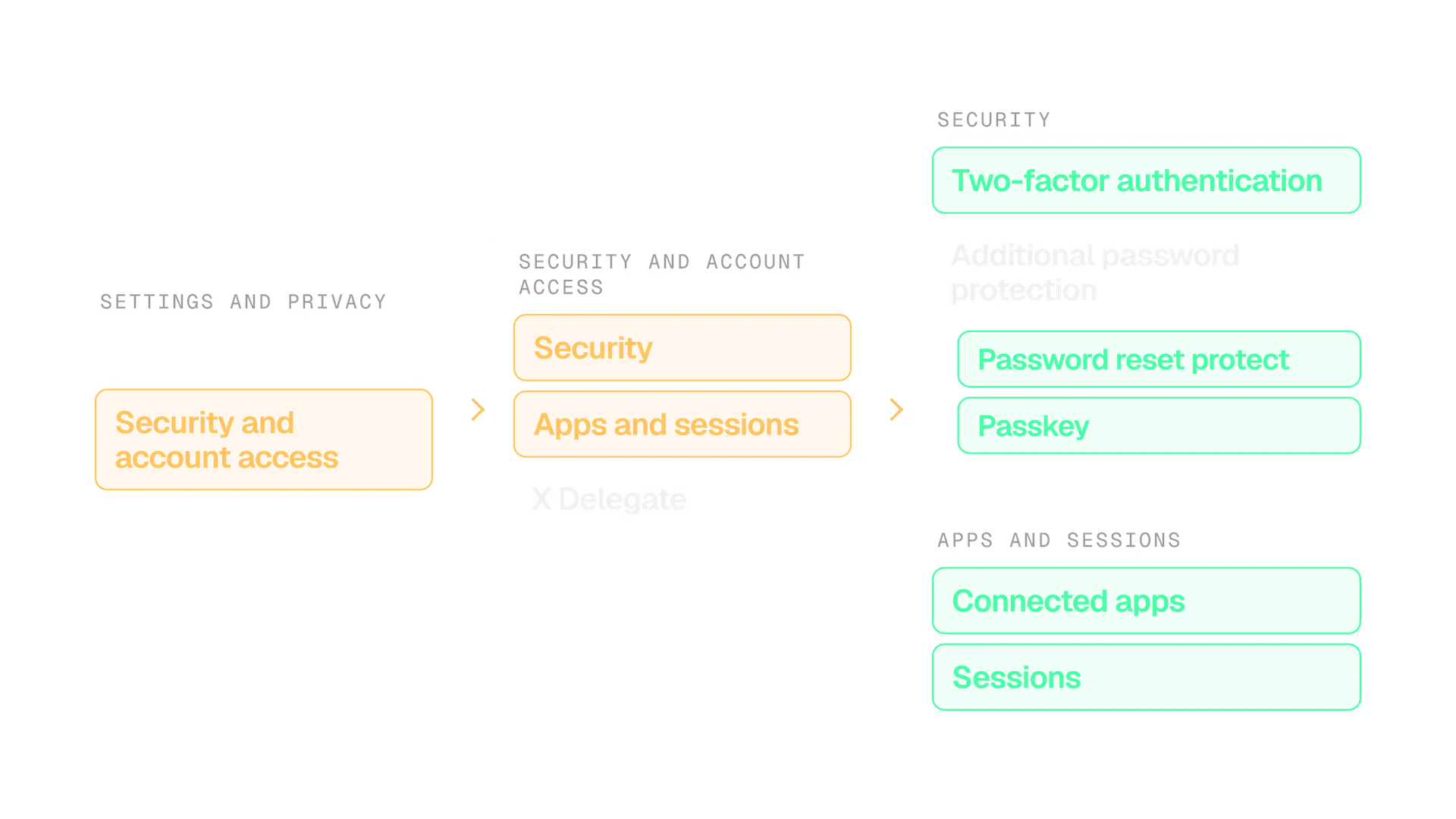
Menus move. If yours looks different, search your settings for the name in bold below. The names are what matter.
Use a password nobody can guess or reuse
X's advice is plain: a strong password that you do not reuse on other sites. Its security tips spell out what strong means.
- Length and mix. At least 10 characters, mixing upper case, lower case, numbers and symbols.
- One password per site. A different password for every website you visit.
- Nothing personal. No personal information, common dictionary words or runs such as abcd1234 or qwerty.
A password manager is the practical way to do this, because nobody remembers a different long password for every site. That part is our advice, not X's.
10
characters, the minimum in X's password tip
X Help Center, Tips for keeping your X account secure
60
minutes a reset code stays valid
X Help Center, How to reset a lost or forgotten password
A password only X knows
Generated by a password manager, longer than 10 characters, used on X and nowhere else.
A password with a story
A pet's name, a year and a symbol on the end, reused on three other sites.
Reset codes matter here too. X sends the code to the email address or phone number on the account, and it stays valid for 60 minutes. Whoever controls that inbox can finish a reset.
Which two factor option should you pick on X
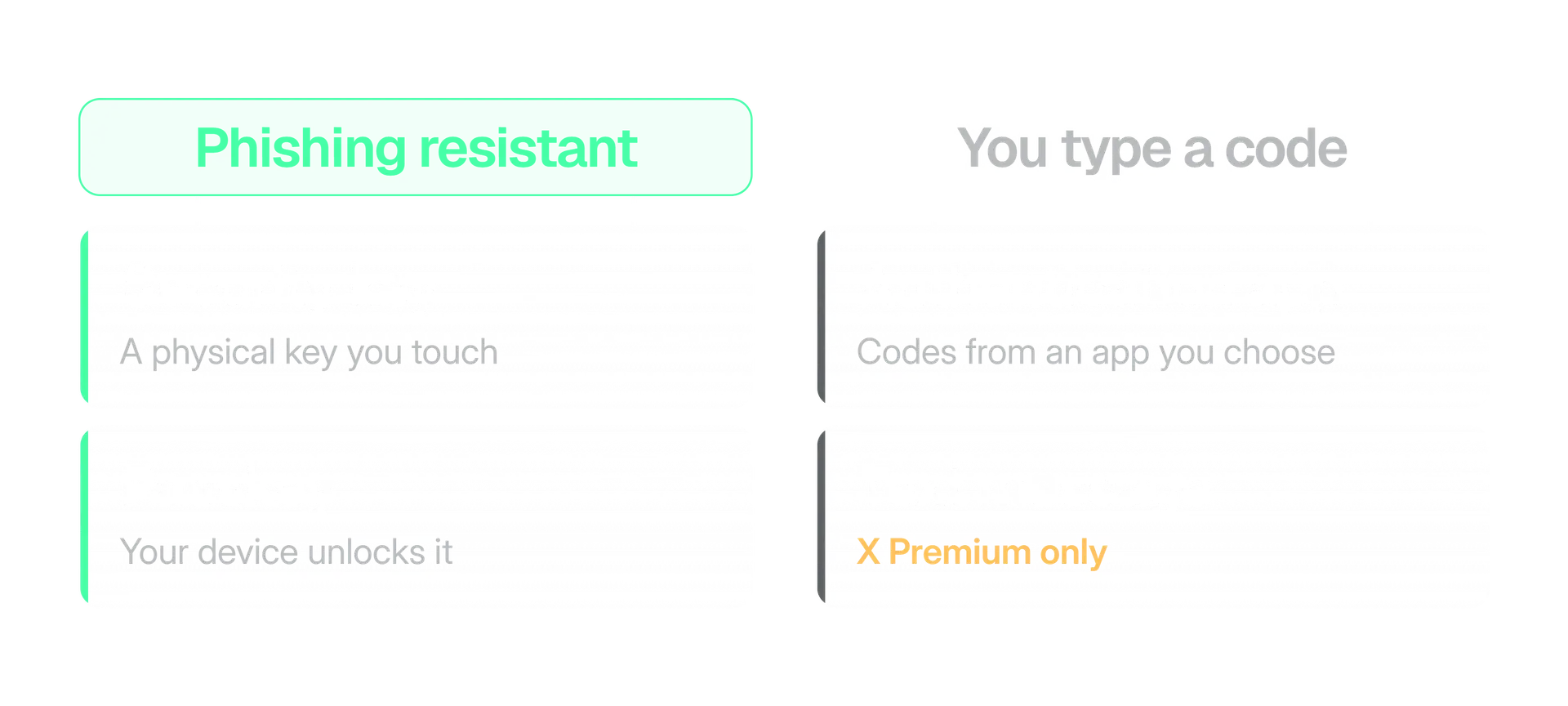
Pick an authentication app or a security key. X lists three two factor methods: text message, authentication app and security key. Text message is only for X Premium subscribers: X's help page says it stopped supporting it for everyone else from 20 March 2023.
Why we put keys and passkeys first
CISA's guidance says the only widely available phishing resistant authentication is FIDO/WebAuthn. Security keys and passkeys are both built on FIDO standards. A code from an authentication app is not, because you can type it into a page that looks like X.
CISA also says any MFA is better than no MFA. So an authentication app is a good choice if you have no key. X does not rank its methods. This ranking is our reading of CISA's definition.
Turn on two factor, step by step
Open the settings
Go to Settings and privacy, then Security and account access, then Security.
Choose Two-factor authentication
Pick Authentication app or Security key. Text message appears only if you subscribe to X Premium.
Pair your authentication app
Scan the QR code with any time based one time password app. X names Google Authenticator, Authy, Duo Mobile and 1Password. Enter the code it shows and tap Verify.
Save your backup code
X says to write it down, print it or take a screenshot. Keep a copy somewhere other than the phone that holds your app.
Add a passkey (optional)
In the X app on iOS or Android, go to Security, open Passkey under Additional password protection, enter your password and choose Add a passkey.
I added a security key a long time ago
X told people with security keys to enrol them again by 10 November 2025, because keys had been tied to an older X domain. The Hacker News reported that after that date an account with a key that was not enrolled again stayed locked until the owner enrolled again, chose another method or chose no two factor. Authentication apps were not affected.
If you see an old key in your list, open Security key, then Manage security keys, and check it still works.
Apps that still ask for your X password
After you turn on two factor, other devices or apps that ask for your X password need a temporary password. X says it sends one by text message when it detects you need it, or you can generate your own on x.com. Better still, connect tools through X's approval screen, so no password is typed at all.
Turn on Password reset protect
Password reset protect makes X ask for the email address or phone number on your account before it sends a reset link or code. X's help pages call it password reset protection. In the app the switch reads Password reset protect.
It matters because of how recovery works. Without it, a username alone is enough for someone to request a reset link, and usernames are public.
That is the weak spot attackers used at the start of September 2026. TechCrunch reported on 1 September that attackers were triggering password reset requests in bulk, using public usernames, after X Money launched. X product engineer Mridul Singhai said X was investigating and had found no evidence of breaches.
Open the Security page
Settings and privacy, then Security and account access, then Security.
Find Additional password protection
Switch on Password reset protect.
Confirm with your password
Enter your current account password and choose OK.
How to review connected apps and sessions
Open Apps and sessions and remove anything you do not recognise. Connected apps lists every tool you have approved, with the permissions each one holds. Sessions lists every active login with its location and time.
Depending on what you granted, X says a connected app may read your posts, see who you follow, update your profile, post for you, access your Direct Messages or see your email address. That is a lot of reach to leave with a tool you stopped using.
Open Connected apps
Settings and privacy, then Security and account access, then Apps and sessions, then Connected apps.
Revoke what you do not use
Choose Revoke access next to any app you do not recognise or no longer use.
Open Sessions
Look at each login's location and time. Choose Log out next to one session, or Log out all other sessions at the top of the list.
How a tool asks for access is a test in itself. A trustworthy tool sends you to x.com to approve it and never asks for your password. That is how Kairo Post works: account owners approve it on x.com with OAuth 2.0 and PKCE, and we never see X passwords.
Tools that post for you also fall under X's rules. Our guide to X automation rules explains what they allow.
Share access without sharing your password
Give people a Delegate role, never your password. X Delegate lets you invite someone as an admin or a contributor. It sits under Security and account access.
| Sharing the password | Using Delegate |
|---|---|
| Anyone who knows it can change it and lock you out | Only the owner manages the password, phone number and login verification settings |
| Taking one person's access away means changing the password for everyone | Owners and admins can manage who is on the account. Contributors cannot |
| Everyone gets the same power, or none | Each person is invited as an admin or a contributor |
Know who has access. The account most at risk is rarely the one with the weakest password. It is the one where nobody can say who still has access. A shared password makes that impossible to answer. A role you can see and manage does not.
This is the short version. The full set of roles, approvals and onboarding steps is in our guide to managing X for clients.
How to spot phishing aimed at your X account
The rule is short: X says it never asks for your password by email, Direct Message or reply, and it only sends email from x.com. Anything else is a trap. Open the X app yourself instead of clicking.
1
email domain X sends from: x.com
X Help Center, How to recognize authentic X emails
0
times X asks for your password by email, Direct Message or reply
X Help Center, Tips for keeping your X account secure
Three lures are worth knowing, because they are the ones X and the press describe.
The fake login alert
It says there was a login from a new device and asks you to click to change your password or review app access. The links lead to a fake site or to a malicious app that asks for access.
Direct Message
The offer
X warns about third parties promising followers, money or verification in return for your username and password.
Email or text
The urgent reset
Reset messages you never requested arrived in floods in September 2026. Skip the link and go to the app.
You are eligible for a verification badge. Confirm your login at the link below within 24 hours to keep your place.
The giveaways: a link, a deadline, and a request to log in. Nothing in it names your account.
Early June 2026
Email gets a sender check
X says it added a Mark Certificate to emails it sends. Many email apps show a blue checkmark next to the sender.
July 2026
Fake alerts look real
The Next Web reported phishing emails that copy X's login notifications almost exactly, with correct logo and grammar. Real alerts name your handle.
1 September 2026
Reset email flood
Users received reset emails they never requested after the launch of X Money. An X engineer said there was no evidence of breaches.
Before you click anything that claims to be from X
- The sender address ends in x.com.
- It names your account, not just "user".
- It has no attachment and does not ask for your password or a code.
- You can fix the problem by opening the X app, without using the link.
What to do if someone already has access
If you can still log in, work through these in order. They come from X's page for compromised accounts.
Change your password
Use a new strong password you have not used before. If you are logged out, use Forgot password on the login page.
Revoke apps you do not recognise
Open Apps and sessions, then Connected apps. X lists this as its own step, so do it even after the password change.
Log out other sessions
In Sessions, choose Log out all other sessions.
Update trusted apps
If a trusted app uses your X password, update it there. Otherwise failed login attempts can lock you out.
Clean up
Delete posts you did not write and scan your computer for malware.
Ask X if you still cannot get in
Send a support request from the email address on the account, with your username and the date you last had access.
Which steps matter most for your kind of account
Every account needs the same five locks. What changes is which one is most likely to slip. This is our advice, based on how each kind of account is run.
One person
A solo creator
Start with the password and a security key or authentication app. Then switch on Password reset protect. You have the fewest moving parts, so these three cover most of the risk.
Several people
A brand with a team
The weak spot is access. Move everyone to Delegate roles, then review Connected apps whenever a scheduling or reporting tool is added or dropped.
Many accounts
An agency with clients
Each client owns their login. Ask the owner to set up two factor and keep the backup code, then invite your team as delegates. Never keep a client's password in a shared sheet.
When a person leaves a team, the check is short: remove their Delegate role, and review Connected apps for anything they set up. If they only ever had a role, nothing else needs to change. That is the payoff of never sharing the password.
A security check you can repeat
You do not need a quarterly project. Run this list when you set up an account, when a person joins or leaves, and whenever a strange email arrives.
The X account security check
- The password is unique and lives in a password manager.
- Two factor is on with an authentication app or a security key, and the backup code is saved.
- Password reset protect is switched on.
- The email address on the account has its own strong password and second step.
- Connected apps and Sessions hold only things you use today.
- Nobody holds the password. Teammates have Delegate roles.
If you connect tools to your account, ask how each one asks for access and what it stores. Those questions are fair for every tool you try, ours included.
In the product
How Kairo Post does this
Everything above works by hand. Kairo Post does the same work for you, with your approval before anything goes out.
Questions people ask
Is text message two factor still available on X?
Which two factor option is the safest on X?
What happens if I lose the phone that holds my authentication app?
Why am I getting password reset emails I did not ask for?
What is a temporary password on X?
Do I need to give my social media manager my X password?
Sources
Every rule, limit and figure in this post was checked against these on the date shown.
- Safety on X: enrol security keys again by 10 November
x.com · checked
- How to use two-factor authentication, X Help Center
help.x.com · checked
- Help with two-factor authentication, X Help Center
help.x.com · checked
- How to use passkey, X Help Center
help.x.com · checked
- Tips for keeping your X account secure, X Help Center
help.x.com · checked
- About third-party apps and log in sessions, X Help Center
help.x.com · checked
- Help with my compromised account, X Help Center
help.x.com · checked
- How to recognize authentic X emails, X Help Center
help.x.com · checked
- How to use the Delegate feature, X Help Center
help.x.com · checked
- How to reset a lost or forgotten password, X Help Center
help.x.com · checked
- More than a password, CISA
cisa.gov · checked
- Passkeys, FIDO Alliance
fidoalliance.org · checked
- X says attackers are targeting accounts after the launch of X Money, TechCrunch
techcrunch.com · checked
- How to stop getting unwanted password reset emails from X, iDownloadBlog
idownloadblog.com · checked
- New X phishing scam copies real login alerts down to the pixel, The Next Web
thenextweb.com · checked
- X Warns Users With Security Keys to Re-Enroll Before November 10, The Hacker News
thehackernews.com · checked
Written by