Images on X: the complete guide
The short answer
An image earns its place on X when it does a job words would do worse: show a thing, prove a claim or compare two things. Pick the kind for the job, keep text big and high in contrast for a phone, describe every image, and post only pictures you have the right to use.
Key takeaways
- Cover the image. If the post reads the same without it, the image is decoration, so leave it out or find a better one.
- X sets no pixel size for post photos. A single photo with a shape between 2:1 and 3:4 displays in full, and a photo can be up to 5 MB.
- Text in an image needs a contrast ratio of at least 4.5:1 for normal text, and it must still be readable when the image shrinks to phone width.
- Describe every image. An image description can be up to 1,000 characters, and any words inside the image belong in it.
- Giving credit is not permission. Use your own images, licensed images or images the owner said yes to, and say so when an image is AI made.
You have a post to write and a picture you could attach to it. Every one of your X images starts with the same question: does this picture earn its place, and will it still do its job on a phone, for a reader who may never see it at all?
This guide follows the path an image takes. First whether to use one, then which kind, then sizes, text, contrast, the file, the description and the rights. Where a sibling guide goes deeper, we give the short version and link to it. If an upload comes out soft, see why X images look blurry and how to fix it.
When does an image help an X post
An image helps when it does a job words would do worse. It shows a thing, proves a claim, compares two things or squeezes a dense list into one glance. If the post reads the same with the picture covered, the picture was decoration, and decoration costs your reader a moment for nothing.
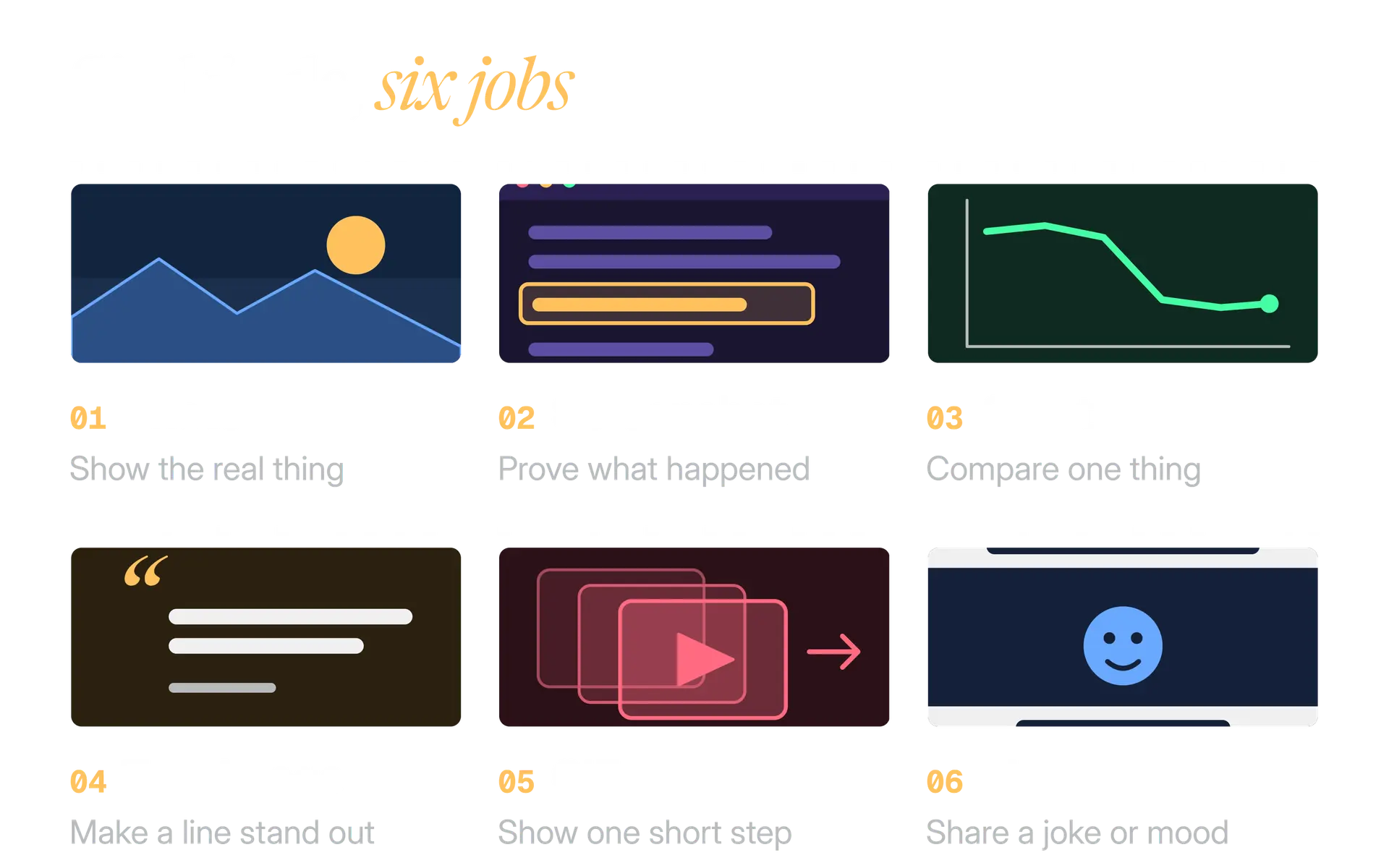
Four jobs pass the cover test again and again.
Job 1
Show
A product in use, a place, a result on a screen. The reader sees what words would need a paragraph to describe.
Job 2
Prove
A screenshot of the message, the receipt or the dashboard you mention. It turns "trust me" into "look".
Job 3
Compare
Before and after, or two options side by side. The eye compares shapes faster than it reads two sentences.
Job 4
Compress
A short table or list that would take three posts. One clean image is easier to take in.
Images do not use up your 280 characters. In X's official apps, attached media counts as 0 characters, as we explain in how X counts characters. That makes a picture a good home for something dense. It does not make it a good place to hide the point, because a screen reader cannot read words inside a picture unless you describe them.
Which kind of image should you use on X
Six kinds cover almost everything you will post: photos, screenshots, charts, text images, GIFs and memes. Pick the kind by its job, then check the one risk each kind carries. For charts and data, see how to design an infographic for X. Three more image guides: news cards for breaking stories, GIFs that load fast and colour contrast people can read on phones.
| Kind | Best for | Watch for | File we export |
|---|---|---|---|
| Photo | Showing a real thing, place or person | Subject near the edge, a file over 5 MB | JPEG |
| Screenshot | Proving what something said or did | Private details, tiny text | PNG |
| Chart | One comparison or one trend | Meaning carried by colour alone, tiny labels | PNG |
| Text image | A line, number or announcement that must stand out | Too many words, low contrast, no description | PNG |
| GIF | One short moving step | Big files, flashing, rough colour | GIF |
| Meme | A shared joke or reaction | Rights to the picture, no description | PNG or JPEG |
The next sections take each kind in turn, with the check we run before it goes out.
Photos and screenshots: what to check
Use your own photos wherever you can, because they are the one kind you never need permission for. Put the subject near the middle, give it room to breathe and keep words away from the edges. We do not know exactly how X crops each picture in a post with several, so a centred subject is cheap insurance.
A screenshot is proof, so it has to be readable. Crop to the one panel that proves the point, enlarge the line that matters and put a box around it. A full desktop with fifteen tabs open proves nothing.
Cropped to the proof
One panel, the key line boxed, the customer's email covered with a solid block. The reader sees the point in two seconds.
The whole screen
A full desktop with an inbox, a name and a phone number visible. The point is lost and the private detail is out.
Privacy comes next. X's rules say you may not publish other people's private information without their authorisation, or share private media of individuals without their consent. One frame of an inbox, a direct message or a customer's order can break that. We cover private details with a solid block, flatten the file and export a fresh PNG.
How to make a chart readable on X
A chart works on X when it makes one comparison obvious on a phone. One chart, one claim, and the title states the claim.
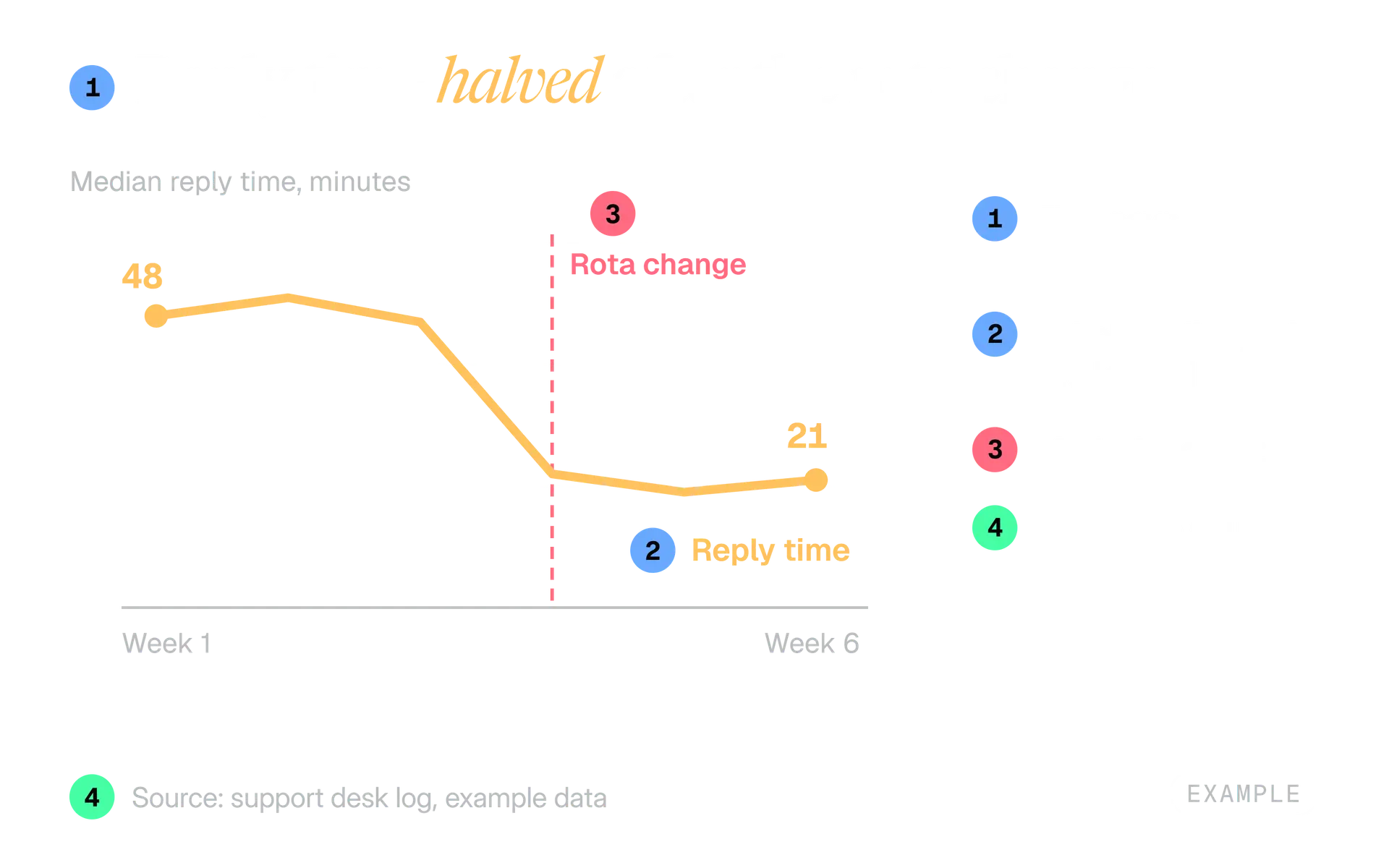
Five habits make the difference.
- Title the finding. "Reply time halved after the rota change" tells the reader what to see. "Reply time by week" makes them work it out.
- Label the line itself. A legend sends the eye back and forth. Put the name or the value next to the line.
- Do not lean on colour. WCAG says colour should not be the only way to tell things apart, and about 1 in 12 men have colour vision deficiency, according to the US National Eye Institute. Add a label or a different line style.
- Keep chart marks clear of the background. WCAG asks for at least 3:1 contrast for graphical objects needed to understand the content, such as lines and pie slices.
- Name the source. One small line under the chart.
A chart also needs a description, because a screen reader gets nothing from the picture alone. The W3C advises a short description that names the type of chart and a longer one with the values and trends. On X you have one box of up to 1,000 characters, so put the type and finding first and the key values after. A worked example is in the alt text section below.
Text images and quote cards
Use a text image when one line should stand out and travel on its own: a quote, a single number, an announcement. Skip it when the words are the post. The reason is practical. A screen reader cannot read words inside a picture, and WCAG asks for real text instead of images of text where the technology allows it.
So we keep two habits:
- Keep it short. About 20 words, which is the guide inside the free quote card maker.
- Repeat the full text in the image description, so nobody is left out.
Our guide to making quote cards for X covers choosing a quote, attribution and contrast in depth. The maker builds the card in your browser at a shape X shows in full.
GIFs and memes: size, flashing and descriptions
Use a GIF for one short step that needs motion, such as a click path or a before and after flip. Three limits are worth knowing:
- File size. In the app, an animated GIF can be up to 5 MB on mobile and up to 15 MB on web.
- Colour. A GIF holds at most 256 colours, so a photographic scene often turns grainy.
- Flashing. WCAG 2.3.1 says nothing should flash more than three times in any one second, to protect people with photosensitive seizure disorders. It says short clips that may loop, such as GIF animations, are judged while looping.
X does not support animated GIFs for a profile photo or header. Your smallest image matters too; see how to choose a profile picture people recognise.
A meme is someone's picture with new words, which gives it two checks:
- Do you have the right to the picture? The rights section below applies in full.
- Can a person who cannot see it get the joke? Describe both the picture and the text.
Few people do. A Carnegie Mellon University study from 2019 looked at 9 million posts and found about 1 million with images. Only 0.1% of those images had a description. A meme that carries one still stands out. Whether a meme fits your account is a voice decision, and brand voice for X is the place to settle it.
Image sizes and crops for X, in brief
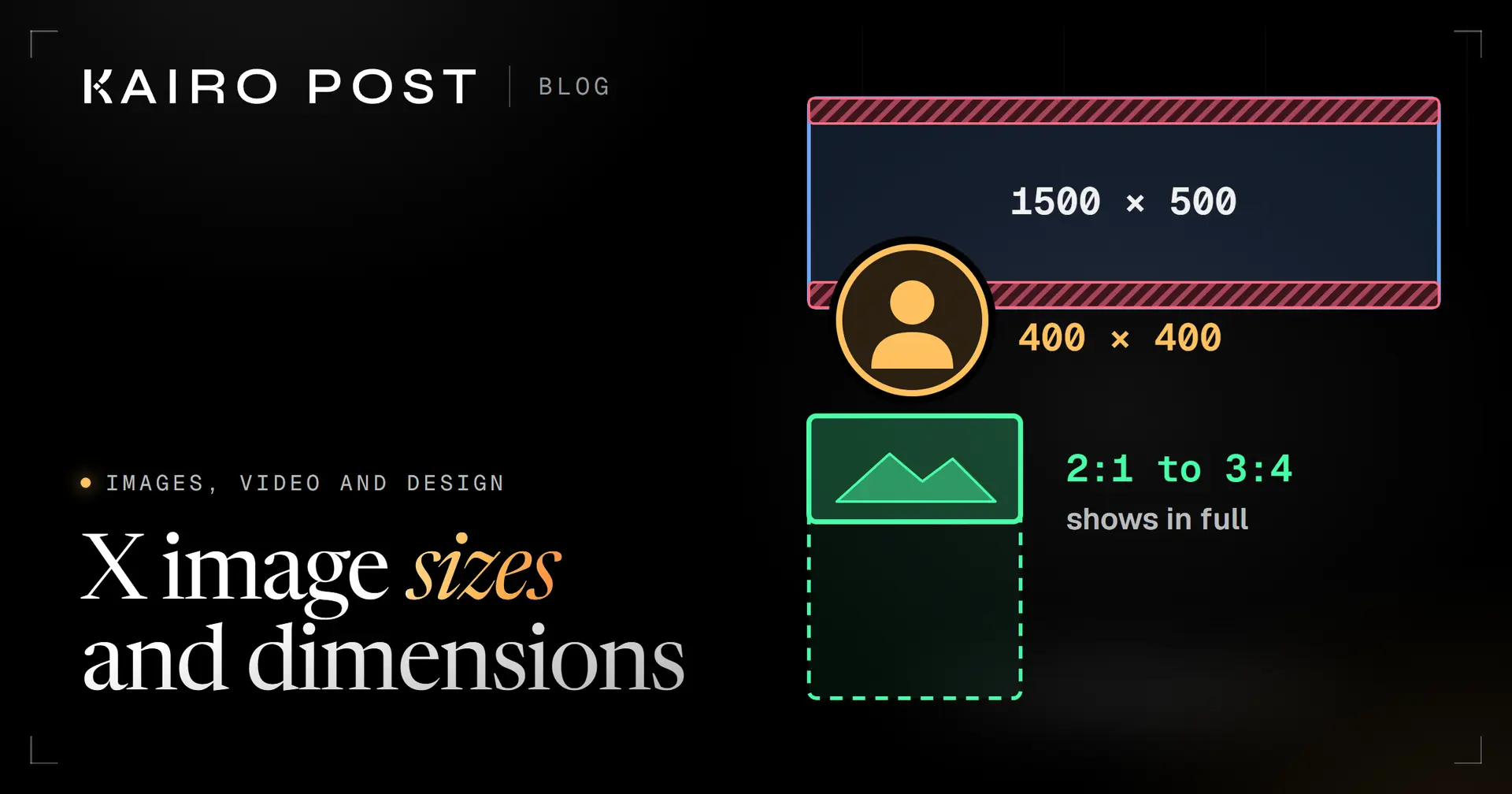
X sets no pixel size for photos in a post. It gives one rule about shape: a single photo with a shape between 2:1 and 3:4 displays in full. The header and the profile photo have recommended sizes.
2:1 to 3:4
Shapes a single photo shows in full
X Help Center, posting photos
5 MB
Largest photo in a post
X Help Center and X API documentation
1500 × 500
Recommended header, in pixels
X Help Center, customize your profile
400 × 400
Recommended profile photo, in pixels
X Help Center, uploading a profile photo
The full table, with the maths for the header's safe band, lives in X image sizes and dimensions. The free image size guide and cropper crops any image to the right size in your browser and shades the crop zones. Before you post someone else's picture, read our guide to copyright on X.
We start from 1600 by 900 for screenshots and charts, 1080 by 1080 for cards and logos, and 1080 by 1350 for portraits. All three sit inside the 2:1 to 3:4 range. They are our choices, not X's numbers.
How many images can one X post hold
A post can hold up to 4 photos. X does not publish how each picture is cropped when there are several, so plan every image to survive a crop: subject in the middle, words away from the edges.
Four rules we follow:
- One job per image. A second frame should add something the first does not.
- Make the first image work alone. We cannot promise which frame a reader opens first.
- Keep the point in the words. The post text carries the claim, and the pictures carry the evidence.
- Describe every image. X lets you add a description to each image in a post.
Can you mix photos, a GIF and a video in one post?
It depends on where you read. X's Help Center says a post can hold up to 4 media items in total, for example 2 photos, 1 GIF and 1 video. X's API documentation describes a post with up to 4 photos, or 1 animated GIF, or 1 video. The two pages describe different users, and we could not open the Help Center page to settle it, so we plan a post around one kind of media unless we have tried a mix in our own app.
How big should text be on a phone
Text in an image should be large enough that it is still readable when the whole image shrinks to a phone's width. Design at a wide size such as 1600 pixels, then do the maths. A phone about 360 points wide shows your image at 360 divided by 1600, which is 0.225 of its design size.
That gives a simple table for a 1600 pixel canvas.
| Text size on the canvas | About this on a 360 point phone | We use it for |
|---|---|---|
| 96 px | 22 pt | The headline or the big number |
| 64 px | 14 pt | The main line of a card |
| 48 px | 11 pt | A credit line, nothing the reader must have |
Fewer words make bigger type possible. A card with 20 words can carry 64 pixel text. A card with 60 cannot, so cut words before you shrink type.
Contrast and colour: images that work in light and dark
WCAG level AA asks for a contrast ratio of at least 4.5:1 for normal text and at least 3:1 for large text. Large means 18 point, or 14 point if bold. A ratio runs from 1:1 (no contrast) to 21:1 (white on black).
We worked out the ratios below with the WCAG formula, for pairs that people really use.
| Text on background | Ratio | Normal text (4.5:1) | Large text (3:1) |
|---|---|---|---|
| White on black | 21.0 | Pass | Pass |
| Off white f0f0f0 on black | 18.4 | Pass | Pass |
| Dark grey 4b5563 on white | 7.56 | Pass | Pass |
| Grey 767676 on white | 4.54 | Pass, just | Pass |
| Grey 777777 on white | 4.48 | Fail, just | Pass |
| Light grey 9ca3af on white | 2.54 | Fail | Fail |
| Light grey b8bbbd on white | 1.93 | Fail | Fail |
One colour can work in one mode and vanish in the other. Amber ffc15e on black is 13.04:1, and the same amber on white is 1.61:1. Because people read X in light and dark, check both. To make every image look like it comes from you, see how to keep a consistent visual style on X.
Which file type and file size for X images
Export PNG for text, lines and flat colour, and JPEG for photographs. A photo in a post can be up to 5 MB, and the app accepts GIF, JPEG and PNG. The API documentation also lists WEBP, so the two do not match, and we leave WEBP out of anything that has to work everywhere.
| PNG | JPEG |
|---|---|
| Lossless: edges around letters stay sharp | Lossy: small type gets soft edges and coloured fringes |
| The format to prefer for screenshots, diagrams and logos | A good choice for photographs |
| Supports transparency | No transparency |
Three more habits help. Export once, at the final size, from your original. Start from a picture at least as large as you need, because enlarging a small one makes it soft. And keep the file under 5 MB for a photo.
Other images have their own rules. The image for a link preview card must be under 5 MB, and ads follow separate creative specs. Our table of limits is in X image sizes and dimensions.
Alt text for every image on X
X calls alt text an image description. It can be up to 1,000 characters, and X's advice is to include any text that appears in the image. You add one after attaching the image by selecting +ALT, typing and selecting Done. An ALT badge then shows on the image.
Attach the image
Add it to your post as usual.
Select +ALT
A text box opens on the image.
Say what it shows and why
Start with the point. Write out any words in the image.
Write it before you post. We found no X page about editing a description once a post is live, so treat it as fixed. You can also switch on a reminder in Accessibility settings that warns you when an image has no description.
We moved support onto a rota in week 4. Median reply time went from about 50 minutes to about 20. The chart shows the six weeks.
Type and finding first
"Line chart of median reply time in minutes over six weeks, example data. It sits near 50 for three weeks, then drops to about 20 after the rota change in week 4."
A label, not a description
"Chart." Or "Image of a graph." A reader learns nothing the post did not already say.
Our full guide to writing alt text for images on X covers length, tone, screenshots, memes and the mistakes that are easy to make.
Can you use that image? Rights, permission and privacy
Post only images you made, images you hold a licence for, or images the owner has said yes to. Giving credit is not permission. The US Copyright Office says you cannot claim copyright to another's work, no matter how much you change it, without the owner's consent.
It also says there are no legal rules permitting a set number of words, notes or a percentage of a work. Limited uses such as quotes for commentary, criticism or news reporting may be allowed, and the Office recommends permission "in cases of doubt". That is US law, and this is general information, not legal advice.
Safest
Your own
Photos you took, charts you built, cards you designed. Check that any font, icon or stock element inside them is licensed too.
Read the terms
Licensed
A stock site or a commissioned photographer. Licences differ by site and by use, so read what yours allows before you post.
Four conditions
Creative Commons
Attribution means credit the creator. NonCommercial limits you to noncommercial use. NoDerivatives bars edits. ShareAlike asks you to share adaptations on the same terms.
Get it in writing
With permission
Ask the owner, and keep the reply. A written yes beats a memory when anyone asks later.
X can act on reports. Its copyright policy covers a copyrighted image used as a profile or header photo or uploaded through media hosting services. If X removes material, it notifies you and explains how to send a counter notice.
Other rules touch images too. X may treat a trademark used to mislead people about your connection to a brand as a violation. A sponsored image needs the Paid Partnership disclosure. X allows consensual adult content when the post or account is marked sensitive. Our guide to X's rules for brands and creators explains each.
Synthetic and manipulated images on X
X's rule now sits in its Authenticity policy: you may not share inauthentic media, including manipulated or out of context media, that may cause widespread confusion on public issues, affect public safety or cause serious harm. That covers media shared as real but significantly and deceptively altered or fabricated, and media shared with false context. X's enforcement page says it may label posts with misleading information.
That is a high bar, and our own bar is lower. We label an image as AI made whenever it could pass as a photograph of a real event, person or product. We never make an image of a real person doing or saying something they did not.
| Fine, and we label it | Not for us |
|---|---|
| An AI illustration of a concept, marked as AI made | An AI photo of a real event that never happened |
| Cropping and colour correcting your own photo | Editing a screenshot to change what a person said |
| A composite, with the edit mentioned in the post | A fake quote card in someone's name |
Labels have a technical side. X's developer documentation for creating a post includes a field to disclose that a post contains AI generated media. We found no Help Center page that explains how an app user sets the same disclosure, so check the composer in your own app.
The Kairo Post AI Agent page shows how its pictures and designs are made and kept, with every version, in the Library. Whatever you use, keep that record yourself: who made the image, with what, and when.
Video on X, in brief
Video follows different rules from images. Without X Premium you can upload a video up to 140 seconds long and up to 512 MB. Subscribers can upload far longer ones. MP4 is the file type named across X's pages.
| Image | Video | |
|---|---|---|
| Main limit | Up to 5 MB per photo | Up to 140 seconds and 512 MB without Premium |
| Words for people who cannot see it | Image description, 1,000 characters | Captions with an SRT file |
| File we export | PNG or JPEG | MP4 |
Our guide to video on X has the limits, formats, captions and thumbnails.
A checklist to run before any image goes out
This is the order we work in. It takes a few minutes, and it catches almost everything in this guide.
Before the image goes out
- The image passes the cover test: the post loses something without it.
- The kind fits the job: photo, screenshot, chart, text image, GIF or meme.
- The shape suits the post, 2:1 to 3:4 for a single photo, and the subject sits in the middle.
- Text is large enough at 360 pixels wide, and the contrast is at least 4.5:1.
- A chart has a title that states the finding, direct labels and a source line.
- Text and line art are PNG, photographs are JPEG, and the file is under 5 MB.
- The image has a description, with any words in it repeated.
- You made it, hold a licence or have written permission.
- No private details show, and no person appears without their consent.
- If it is AI made and could pass as real, the post says so.
- You looked at the post in the preview, light and dark.
If you post many images, doing this by hand gets slow. The Kairo Post AI Agent page describes designs made in your brand kit, AI pictures that follow one saved image style per account and alt text you can draft in one click and edit before publishing.
For your next post, start with the cover test. If the image passes, pick the kind, export it at the right size and describe it before you post.
In the product
How Kairo Post does this
Everything above works by hand. Kairo Post does the same work for you, with your approval before anything goes out.
Questions people ask
Do images get more reach on X?
How many images can I add to one X post?
What size should an image be for an X post?
Should I use PNG or JPEG for images on X?
Can I post an image I found online if I credit the owner?
Do I have to label AI generated images on X?
Do images count towards the 280 characters?
Sources
Every rule, limit and figure in this post was checked against these on the date shown.
- How to post photos or GIFs on X, X Help Center
help.x.com · checked
- How to Post, X Help Center
help.x.com · checked
- How to add image descriptions, X Help Center
help.x.com · checked
- Copyright policy, X Help Center
help.x.com · checked
- Authenticity, X Help Center
help.x.com · checked
- Private information policy, X Help Center
help.x.com · checked
- Best practices for media uploads, X developer documentation
docs.x.com · checked
- Media upload endpoints on the X API v2, X developer documentation
docs.x.com · checked
- Counting Characters, X developer documentation
docs.x.com · checked
- Create Post, X developer documentation
docs.x.com · checked
- Understanding Success Criterion 1.4.3: Contrast (Minimum), W3C
w3.org · checked
- Understanding Success Criterion 1.4.11: Non-text Contrast, W3C
w3.org · checked
- Understanding Success Criterion 1.4.1: Use of Color, W3C
w3.org · checked
- Complex Images, W3C Web Accessibility Initiative
w3.org · checked
- Color blindness, National Eye Institute
nei.nih.gov · checked
- Image file type and format guide, MDN Web Docs
developer.mozilla.org · checked
- Copyright FAQ on fair use, U.S. Copyright Office
copyright.gov · checked
- About CC licenses, Creative Commons
creativecommons.org · checked
Written by