How to manage multiple X accounts without mixing them up

The short answer
Add each account to the X app or the web and switch with your profile icon, up to 10 accounts for different, non duplicative purposes. For accounts that are not only yours, use Delegate instead of passwords, and give every account its own posts.
Key takeaways
- X allows you to create or operate up to 10 accounts, each for a different, non duplicative purpose.
- Add accounts from your profile icon and check the avatar and handle before every post.
- For an account that is not only yours, use Delegate. It works without sharing a password.
- Posting the same thing on several accounts you operate breaks X's rules, so write each account its own post.
- Give every account a voice sheet, an owner and a slot in your week.
You have a personal account, a brand account and maybe one or two that belong to someone else. To manage multiple X accounts without a mix up, you need three things: a clean way to switch, a safe way to share access, and a habit of checking which account you are in before you post.
Everything below is built on X's own help pages. If you run accounts for clients, this guide is the short version of our agency guide to managing X for clients.
How do you manage multiple accounts on X?
Pick the route by asking whose account it is, not how many you have. Three routes cover almost every case.
Your own accounts
Switch
Add each account to the X app or the web once, then switch from your profile icon. It is built in.
Accounts that are not only yours
Delegate
The owner invites you as an admin or a contributor. You act on the account from your own login, with no password shared.
Many columns, per account scheduling
X Pro
A separate web app that shows several timelines and schedules for each connected account. Access is limited, see below.
Most mix ups come from using the first route for the second job: someone shares a password because switching is easy and Delegate takes a minute to set up.
10
accounts you can create or operate, each for a different, non duplicative purpose
How to manage multiple accounts, X Help Center
2
Delegate roles you can invite someone into: admin or contributor
How to use the Delegate feature, X Help Center
200
team members on an X Pro team
How to use the Teams feature on X Pro, X Help Center
How do you switch between X accounts in the app and on the web?
You add each account once, then switch from your profile icon. X says this works in the X app for iOS and Android, on desktop, on mobile.x.com, in X Lite and in X for Windows.
Add the account
In the iOS app, tap the menu icon, then the more icon, and choose to add an existing account. On desktop, click your profile icon in the side menu, then the more or plus icon. On mobile.x.com, tap your profile icon at the top left, then the more icon.
Sign in as you normally would
Use the login of that account, as you would on a new device.
Switch from the profile icon
Tap or click your profile icon, then the smaller profile icons shown next to the more icon. Open the menu again to come back.
Check before you write
Look at the avatar, the name and the handle. We cover why in the next few lines.
The Android app supports multiple accounts too, with its account menu in a slightly different place. X moves icons between versions, so if yours does not match, follow the current page on X's Help Center.
Removing an account from the app does not delete it. X says you can add it back later with the Log in button.
How many X accounts can you have?
Up to 10, according to X's Help Center, and each one needs a different, non duplicative purpose. The same sentence appears on X's pages on multiple accounts, on authenticity and on automation.
Some guides online also quote a cap on how many accounts you can stay signed in to at once. We found none on X's pages, so we only quote the limit X states.
X does not define "non duplicative". Our reading is a simple test: if the other nine accounts vanished, would this one still have a reason to exist? A brand account, a founder account and a support account pass. Two brand accounts that post the same news do not.
The purpose test for each account
- It has one audience that is different from your other accounts.
- It has a reason to exist that you can say in one line.
- It does not repeat what another account of yours posts.
- One named person owns it, even when a team posts.
X's rules on spam and platform manipulation explain what sits behind this limit for brands and creators.
When should you use Delegate instead of a password?
Use Delegate whenever an account is not only yours: a client, a company or a teammate. It lets the owner invite someone to act on the account without sharing a password.
X Delegate lives under Your account, then Security and account access, then X Delegate. Invites are for an admin or a contributor. Our guides to securing an X account and managing X for clients go deeper on safety and onboarding. Here is what to know to choose.
| Can they… | Owner | Admin | Contributor |
|---|---|---|---|
| Post, repost, Direct Message, like, schedule and delete | Yes | Yes | Yes |
| Invite people and manage who is on the account | Yes | Yes | No |
| Manage password, phone number and login verification | Yes | No | No |
X's page also lists viewing post analytics under the admin role. Contributors cannot manage the delegated account, and only admins can manage the team.
The owner opens Delegate
Log in to x.com with the account you want to share. Click Your account, then Security and account access, then X Delegate, then Invite a member.
The owner picks the person and the role
Type the name or @username, choose contributor or admin, and click Send invite.
The delegate accepts
On x.com, open Delegate and click Accounts delegated to you. Under Pending invites, choose Accept. The account then shows under admin access or contributor access.
Two things to know. Delegate is set up on x.com, and it also works in X Pro. And some people switch off "Allow others to Delegate to you", which stops invites from reaching them.
If several teammates need different access to different accounts, our accounts and teams page describes how Kairo Post connects accounts through X's own sign in, so nobody shares an X password.
Is X Pro worth it for several accounts?
Only if you want several timelines on one screen or scheduling for each account. For switching and sharing, you do not need it.
X describes X Pro as a way to view multiple timelines in one interface, with advanced features to manage multiple accounts and schedule posts. Here is how it compares with switching in the X app and on the web.
| Switch in the app or on the web | X Pro |
|---|---|
| Built into the X app and the website | A separate web app. Limited to Premium+ since 26 March 2026, per MacRumors |
| Add an account from your profile icon and sign in | Add an existing account by entering its username or email and its password |
| One account's view at a time | Several timelines in columns |
| Share an account with Delegate | Delegate works here too, and X Pro Teams lets up to 200 people share |
The row that matters for client work is the second one. In X Pro, adding an account means typing its username or email and password. If the account belongs to a client, ask for a Delegate invite instead of their login.
Scheduling for each account in X Pro
X says that if you manage multiple accounts through X Pro, you can schedule posts for each of them. Before you compose, confirm that the account you want to post from is selected. A Scheduled column lets you view and edit what is queued.
In a corporate setting, X notes that scheduled posts for connected accounts are visible to anyone with access. Our guide to scheduling posts on X covers the other options and why scheduled posts fail.
What do X's rules say about running several accounts?
You may run several accounts, including for other people, as long as each has its own job and no X Rules are broken. X's Authenticity policy lists controlling multiple accounts on behalf of a third party, such as social media managers, as allowed.
What X does not allow is using those accounts as one voice or as one crowd.
| Fine | Not allowed |
|---|---|
| Running accounts for different purposes, up to 10 | Accounts that post substantially similar or identical content to one another |
| A social media manager controlling accounts for a third party | Using several accounts to engage with the same posts, or to boost a trend or hashtag |
| Automating accounts for related but non duplicative use cases | Posting duplicative or substantially similar posts over multiple accounts you operate |
| Appealing a suspension to X | Making a new account to get around a suspension |
The automation rules give the allowed case an example: separate accounts that each post when a telescope passes over a different city. Same method, different job. A shared launch is the case that catches teams. Our post on how X handles duplicate posts explains it, and the free duplicate post checker shows how much wording two drafts share.
On suspensions: X's ban evasion policy says you cannot circumvent a suspension, including with a new account, and that if an account is permanently suspended X reserves the right to also permanently suspend any other account the same holder or entity operates. If you are locked out, follow our guide to a locked or suspended X account and appeal.
How do you keep each account's voice separate?
Give every account a one page voice sheet and a different job, then write from the sheet rather than from memory.
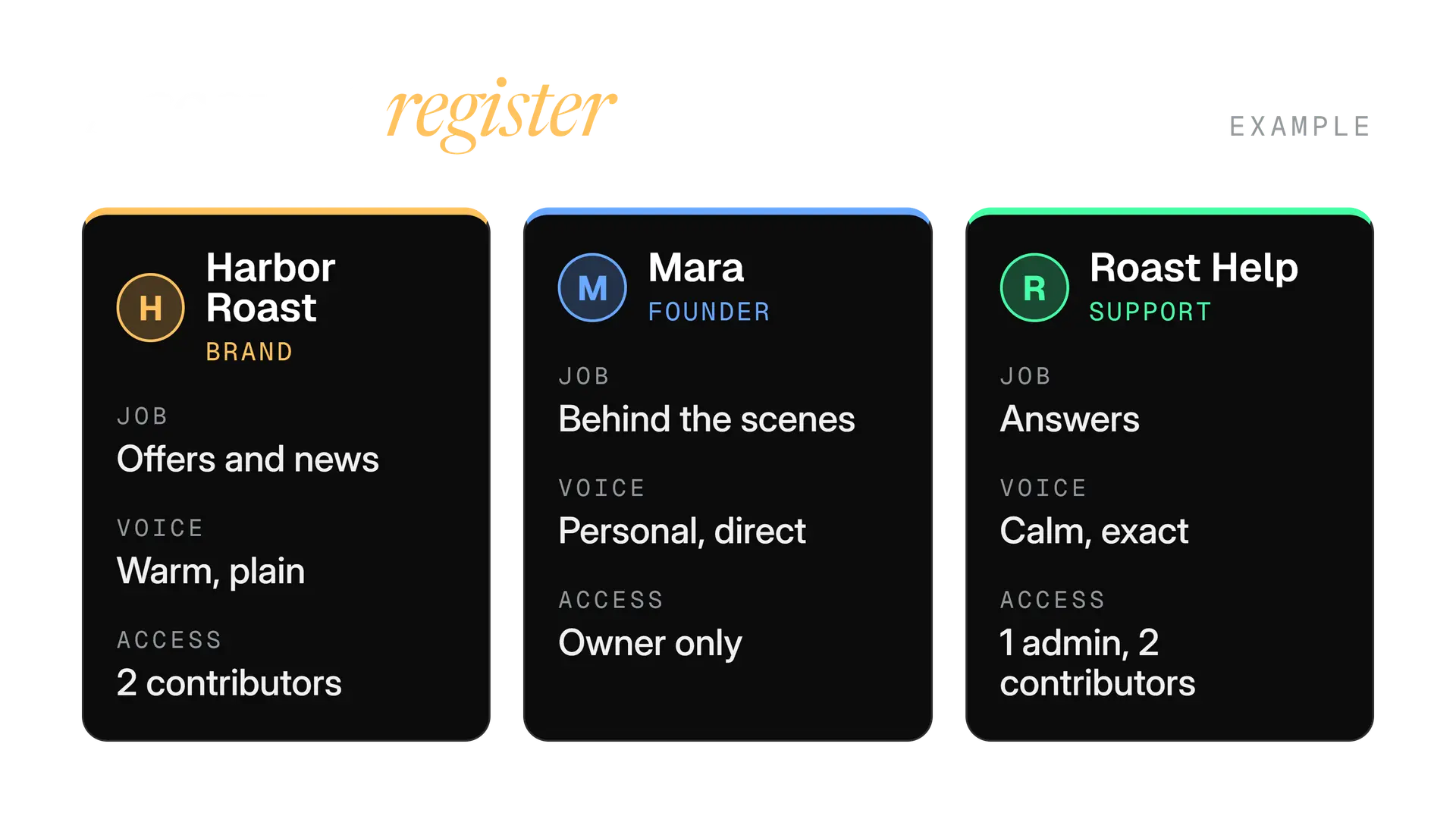
The voice sheet is the same idea as in our guide to brand voice for X, applied once per account. The account register below puts the sheet next to the things that go wrong when several accounts share one head: who owns the account, who can post and what each one is for.
Now the test. When the same news goes out, the words, the first line and the point should differ by account.
The second shop opens Saturday on Dock Street. Free filter coffee until 10, and the full menu is on the board by the door.
I signed the lease for shop two on a Tuesday and told no one for a week. Saturday we open. I am more nervous than I was for the first one.
Both are made up. The brand post helps the customer find the shop. The founder post lets a follower see the person. Neither could be pasted onto the other account.
Write each account from its sheet
- Open the account's voice sheet before a batch.
- Write one account's posts in one sitting.
- Change the angle, not just the wording.
Rewrite the same draft four times
- Change a few words and post it everywhere.
- Switch accounts after every single post.
- Let the support account use the founder's jokes.
What does a weekly routine across several accounts look like?
Plan once, write each account in its own block, then check and report together. One rhythm for every account is easier to keep than a different one for each.
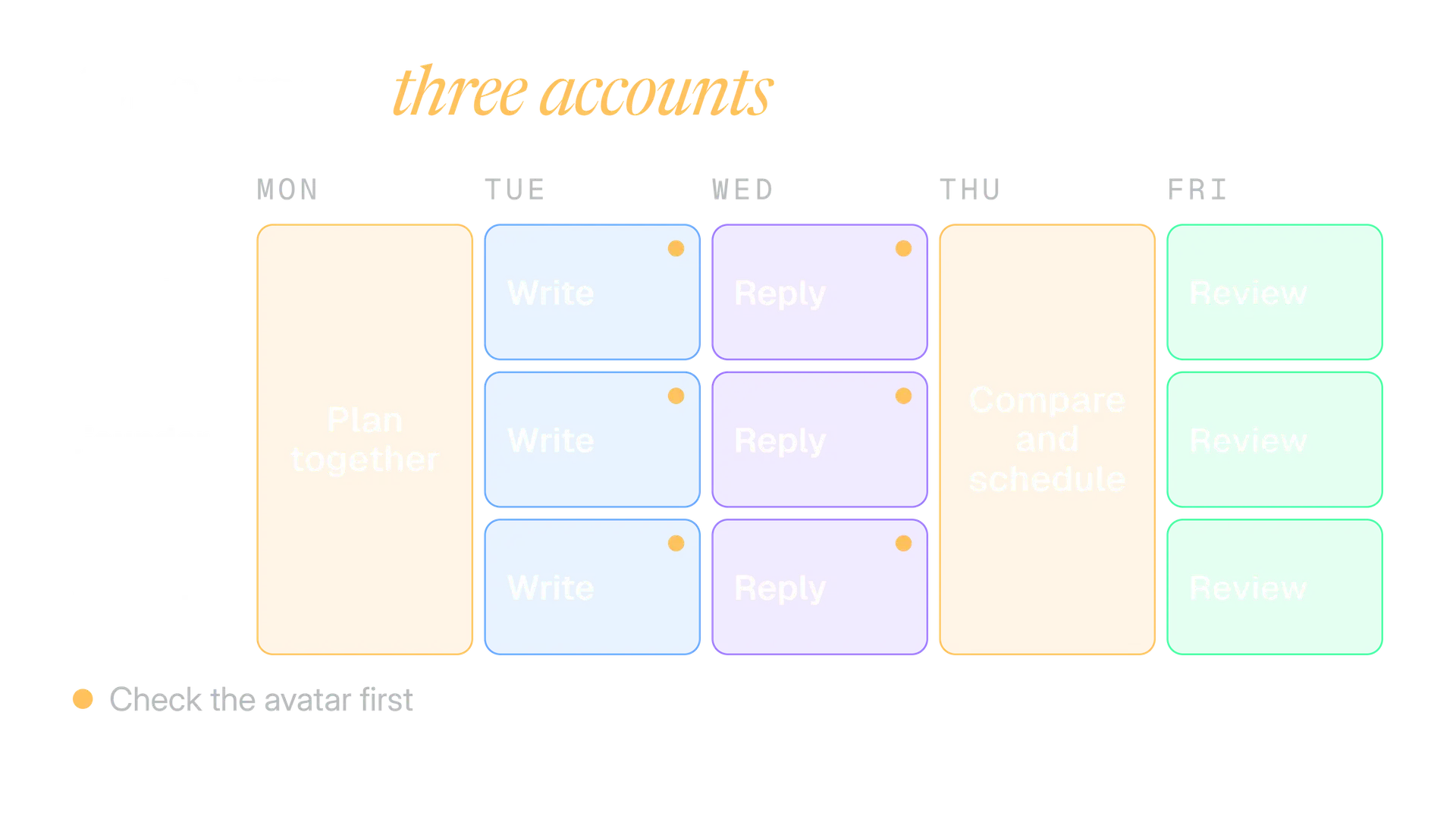
Here is the routine we recommend, and what each step is for.
- Monday: plan all accounts together. Look at the week in one place so you can see two accounts about to say the same thing. The free content calendar generator can lay out a month.
- Tuesday: write one account at a time. Finish the whole batch for an account before you switch, so you stay in its voice.
- Wednesday: replies. Answer from the account that was asked, and check the avatar each time you switch.
- Thursday: schedule and compare. Put the week's posts side by side and rewrite any pair that sounds alike.
- Friday: review. Note what each account's audience responded to, separately, not as one pool.
Each block ends with a switch and a check. That pause is cheap, and it is where most wrong account posts are stopped.
What mistakes happen with multiple accounts, and how do you fix them?
Most are small and avoidable. These are the ones we see most, and what to do about each.
Most common
Posting from the wrong account
You switched, then wrote. Check the avatar and handle before Post.
Rule risk
One post on every account
X's rules bar substantially similar or identical content across accounts you operate. Write each its own.
Access
A shared password
You cannot remove one person without changing it for everyone. Use Delegate roles instead.
Rule risk
Boosting your own accounts
Using several accounts to engage with the same posts or lift one of your own is what the Authenticity policy rules out.
Serious
A new account after a suspension
Circumventing a suspension with a new account is against X's ban evasion policy. Appeal instead.
Leavers
Access that never ends
Review who can post on each account each month. Owners and admins can manage who is on a delegated account.
If you do post from the wrong account, move fast and keep it simple.
Delete it
X says you can delete any of your own posts at any time. Open the menu on the post and choose Delete post.
Tell the owner
Say what happened and which account it came from. The owner is responsible for what is posted, so they should hear it from you first.
Post the right version
Switch to the correct account, check the avatar, and post the intended text there.
Add the missing check
Ask what let it happen. Usually it is a missing pause between switching and posting.
Deleting removes the post from your profile and timelines. It cannot take back what people already saw or copied.
Which setup fits you?
Choose the lightest setup that keeps access safe and each account distinct.
| Your situation | Setup |
|---|---|
| Two or three accounts that are all yours | Add them to the app and web, a voice sheet each |
| An account that belongs to a client or a company | Delegate, with the contributor role by default |
| Many accounts and wanting columns or per account scheduling | X Pro if you have access, otherwise a scheduler |
| A team with different access to different accounts | Delegate, or a workspace tool that scopes access per account |
If you are in the last row, our accounts and teams page shows how Kairo Post groups accounts by brand or client and limits each teammate to the accounts you give them.
Once a month, spend ten minutes on access. It is the job that gets skipped, and the one that matters when someone leaves.
- List who can post on each account. Compare it with who should.
- Remove anyone who has moved on. Owners and admins can manage who is on a delegated account.
- Check each role again. A contributor who now manages the team needs the admin role, and the other way round.
- Read the last week of posts side by side. Look for two accounts that have drifted into saying the same thing.
Before you add the next account
- It passes the purpose test and has a named owner.
- Access is by Delegate, not by sharing a password.
- It has its own voice sheet and its own slot in the week.
- You can switch to it and check the avatar before posting.
- Nothing it posts repeats another account of yours.
In the product
How Kairo Post does this
Everything above works by hand. Kairo Post does the same work for you, with your approval before anything goes out.
Questions people ask
Can I run my personal and business accounts from one phone?
Can I manage a client's X account without their password?
Is it a problem if my accounts reply to each other?
What happens to my other accounts if one is suspended?
Do I need X Pro to manage several accounts?
Can I schedule posts for different accounts?
Sources
Every rule, limit and figure in this post was checked against these on the date shown.
- How to manage multiple accounts, X Help Center
help.x.com · checked
- How to use the Delegate feature, X Help Center
help.x.com · checked
- Authenticity, X Help Center
help.x.com · checked
- Automation rules, X Help Center
help.x.com · checked
- How to use X for iOS, X Help Center
help.x.com · checked
- How to use X Pro, X Help Center
help.x.com · checked
- How to delete a Post, X Help Center
help.x.com · checked
- X moves X Pro behind a Premium+ paywall, MacRumors
macrumors.com · checked
Written by